

Works inside Shopify admin
Import to Shopify from a spreadsheet
Products, customers, orders, stock and collections — from the CSV or Excel file you already have, or straight from Google Drive, Dropbox or OneDrive. Map your own column names once, import thousands of rows in a single run, and let a linked sheet re-import itself every day.
First 100 rows free. Then pay per row. No subscription, no card to add.
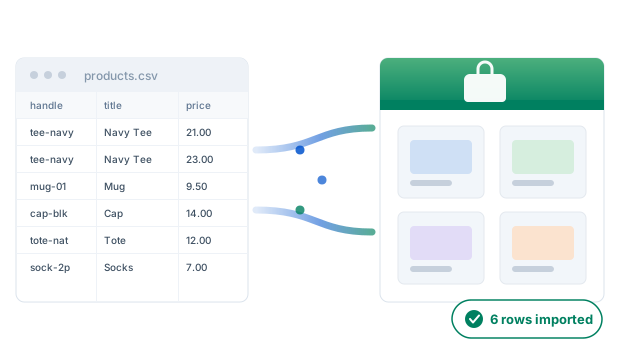
How it works
Five steps, all inside Shopify admin. Nothing to install on your computer.
-
Upload a file, or link one
CSV or .xlsx — uploaded, or linked from Google Drive, Dropbox, OneDrive or your own server. The column names are yours; there is no template to conform to.
-
Check the mapping
Your columns are matched to Shopify fields automatically. Fix anything that matched wrongly, and save the mapping to reuse next time.
-
Preview first
See exactly what will be sent. Rows that cannot be imported are listed with the reason and the row number — before the import starts, not after.
-
Import
The whole file goes to Shopify as one bulk operation, so a few thousand rows is a single job rather than a few thousand requests. You can close the tab.
-
Repeat on a schedule
A linked import can run again on its own, every day or every week, re-reading the file each time. Keep the sheet up to date and the store follows.
Keep it in a sheet, and let it run itself
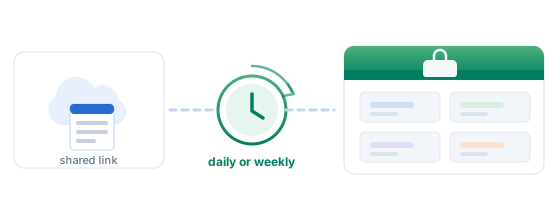
Point an import at a file in cloud storage instead of uploading one, and it can re-read that file on a schedule. Update the sheet; the store follows.
- Google Drive
- Google Sheets
- Dropbox
- OneDrive
- Your own server
- Any public link to a CSV or Excel file. If the link opens for anyone who has it, the importer can read it.
- Every day or every week, starting at a time you pick. Schedules run on whole days — there is no hourly option.
- It re-reads the file each run, so the sheet is the thing you maintain. Change a price there and the next run carries it over.
- Every run is listed in Imports with its own results, so a schedule that started failing is visible rather than silent.
Only imports started from a link can be scheduled — a schedule re-reads its source, and an uploaded file is a one-off copy with nothing to go back to.
What you can import
Re-running a file updates what is already there rather than duplicating it, matched on the identifier in the middle column.
| Records | Matched on | Re-import behaviour |
|---|---|---|
| Products — variants, prices, opening stock, tags | handle | Updates the existing product |
| Inventory — set stock levels for existing variants | sku | Overwrites the on-hand quantity |
| Collections — create custom collections | handle | Leaves an existing collection unchanged |
| Customers — names, emails, phones, addresses, tags | email / phone / ID | Updates the existing customer |
| Orders — line items, totals, statuses, dates | order number | Skips orders you already have, if you ask it to |
Not sure what your file should look like?
The app gives you a starter workbook — an Excel file with a sheet for each import type, the exact column names, and sample rows showing how they fit together. These are the columns it contains.
Products
One row per VARIANT. Rows sharing a handle become one product with several variants — the two sample rows are one t-shirt in two sizes.
Required
- Handle
Then whichever of these you need
- Title
- Description
- Vendor
- Type
- Status
- Tags
- Option1 Name
- Option1 Value
- SKU
- Barcode
- Price
- Compare At Price
- Taxable
- Quantity
- Cost
- Track Inventory
- Requires Shipping
- +7 more
These are the headings in the template. Your own wording is matched too — handle, title, descriptionHtml and 200 more.
handle identifies the product. Re-importing the same handle UPDATES that product rather than creating a second one.
Customers
One row per customer.
Then whichever of these you need
- First Name
- Last Name
- Note
- Tags
- Tax Exempt
- Address
- Address Line 2
- City
- State
- Zip
- Country
- Company
- +3 more
These are the headings in the template. Your own wording is matched too — email, firstName, lastName and 200 more.
One of email, phone or customerId is required — the row cannot be matched without one. Re-importing the same email UPDATES that customer.
Orders
One row per LINE ITEM. Rows carrying the same order number in orderName become one order — the two sample rows are one order with two items.
Required
- Order
- Quantity
Then whichever of these you need
- Date
- Payment Status
- Fulfillment Status
- Currency
- First Name
- Last Name
- SKU
- Item Name
- Price
- Shipping address: First name
- Shipping address: Last name
- Shipping address: Line 1
- Shipping address: City
- Shipping address: Zip
- Shipping address: Country
- +26 more
These are the headings in the template. Your own wording is matched too — orderName, quantity, email and 200 more.
The order number in orderName groups the line items and becomes the order's reference in Shopify. It can be any value, as long as every line of one order repeats it. Orders are only ever created, never updated; turn on "skip existing orders" in Settings to avoid duplicates when re-running a file.
Inventory
One row per SKU at one location. The two sample rows set stock for two SKUs; a SKU stocked in two warehouses is two rows.
Required
- SKU
- Quantity
Then whichever of these you need
- Location
These are the headings in the template. Your own wording is matched too — sku, inventoryQuantity, inventoryLocation and 200 more.
sku finds the variant to set stock on. This import SETS the on-hand quantity, overwriting what is there; it never creates or deletes a product.
Collections
One row per collection. The two sample rows are two collections.
Required
- Title
Then whichever of these you need
- Handle
- Description
- Sort Order
These are the headings in the template. Your own wording is matched too — title, handle, descriptionHtml and 200 more.
handle identifies the collection. This import only CREATES: a handle that already exists is left unchanged and reported, never overwritten.
Leave a cell blank to leave that field alone — a blank never clears something already in Shopify. You can delete columns you do not need and reorder the rest; just do not rename the headers, because those are what the importer matches on.
Built for files that are not perfect
Real exports are messy. These are the parts that usually cost an afternoon.
Your column names
“Item name”, “Product Title”, “title” — all of them match. Rename nothing.
Your number and date format
1,234.56 or 1.234,56; day-first or month-first. Set it once and every import reads your file the way you wrote it.
One product, many rows
A product with five variants is five rows in your file and one product in Shopify. Rows are grouped by handle for you.
Bad rows do not stop the run
A row that cannot be imported is reported with its row number and the reason. The rest of the file still goes through.
Stop mid-run
Change your mind and stop the import. Rows already written stay in your store and are listed, so you know exactly where it got to.
Undo an order import
Order imports can be undone from the results page — it removes the orders that run created. Nothing else can: product and customer imports update records you already had and those previous values are not ours to restore, stock is a number we overwrote rather than a record we made, and a collection import only ever adds collections that were not there before.
Pricing
Pay for what you import, when you import it.
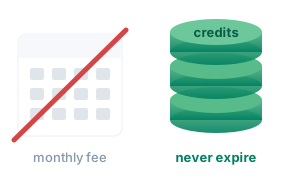
No subscription. Pay as you need it.
There is no monthly fee and nothing to cancel. You buy credits, and one credit is one imported record. Import ten thousand products in March and nothing in April, and April costs you nothing.
1,000 credits
$19.00
1.9¢ per record
5,000 credits
$79.00
1.58¢ per record
25,000 credits
$299.00
1.2¢ per record
Best value- Credits never expire.
- A row that fails is not charged.
- Billed through Shopify, on your regular invoice.
- Top up from inside the app whenever you run low.
Questions
Will re-importing the same file duplicate my products?
No. Products match on handle and customers on email, so a second import of the same file updates those records. A stock import sets the same numbers again, and a collection import leaves a collection that already exists untouched. Orders are the exception — Shopify cannot match them, so the app looks them up by order number and skips the ones you already have if you turn that setting on.
What happens to a row that is wrong?
It is reported with its row number and what was wrong with it, and the rest of the file still imports. You are not charged for a row that did not import.
How large a file can I import?
Larger than you are likely to need. The file goes to Shopify as one bulk operation rather than row by row, which is what makes several thousand rows practical.
Can I import from Google Drive?
Yes — Google Drive, Google Sheets, Dropbox, OneDrive, or a file on your own server. Anything with a public link to a CSV or Excel file. The link has to open for anyone who has it; a file that asks the importer to sign in cannot be read.
Can I import on a schedule?
Yes, if the import reads from a link rather than an uploaded file — a schedule re-reads its source, and an uploaded file is a one-off copy with nothing to go back to. Schedules run every day or every week, starting at a time you choose. There is no hourly option: they run on whole days.
What if I change the sheet?
The next scheduled run picks it up, because it re-reads the file rather than a copy of it. Every run is listed in Imports with its own results, so a schedule that starts failing is visible rather than silent.
Do credits expire?
No. Buy what you need and use it whenever — there is no subscription and nothing to cancel.
Start with the file you already have
No subscription, no setup fee, no card to add.
Add the app in ShopifyQuestions first? Talk to us.